AI art generators can make almost any picture you can imagine. Logos, product shots, posters, illustrations, scenes that never existed.
But anyone who has used them knows the other side too. Weird hands, wrong colors, text that looks like gibberish, and twenty tries to get one usable image.
The good news is that most bad results come from a handful of fixable habits. These 11 tips for using AI art generators will help you get better images with fewer tries, whether you're making art for fun or graphics for your business.
Tip 1. Start With the Job, Not the Tool
Before you type anything, ask what the image is for. A social media banner, a product photo, a blog illustration and a logo all need different things.
Knowing the job tells you the size, the style and how much detail you need. It also stops you from wasting time on a beautiful image that doesn't fit where it's going.
Write the job down in one line, like "A wide banner for our spring sale email, bright and cheerful, with space on the left for text." That single sentence will guide every choice that follows.
Tip 2. Pick the Right Model for the Picture
Not all AI image models are good at the same things. Some are great at realistic photos. Some handle text inside images well. Others shine at illustration, painting styles or design work.
If one model keeps failing at your image, the problem may not be your prompt. Try the same idea on a different model. It is often the fastest fix there is.
This is where an all-in-one tool helps. Instead of paying for several separate subscriptions, you can switch models in one place until the picture matches what you had in mind.
Tip 3. Describe the Scene, Not Just the Subject
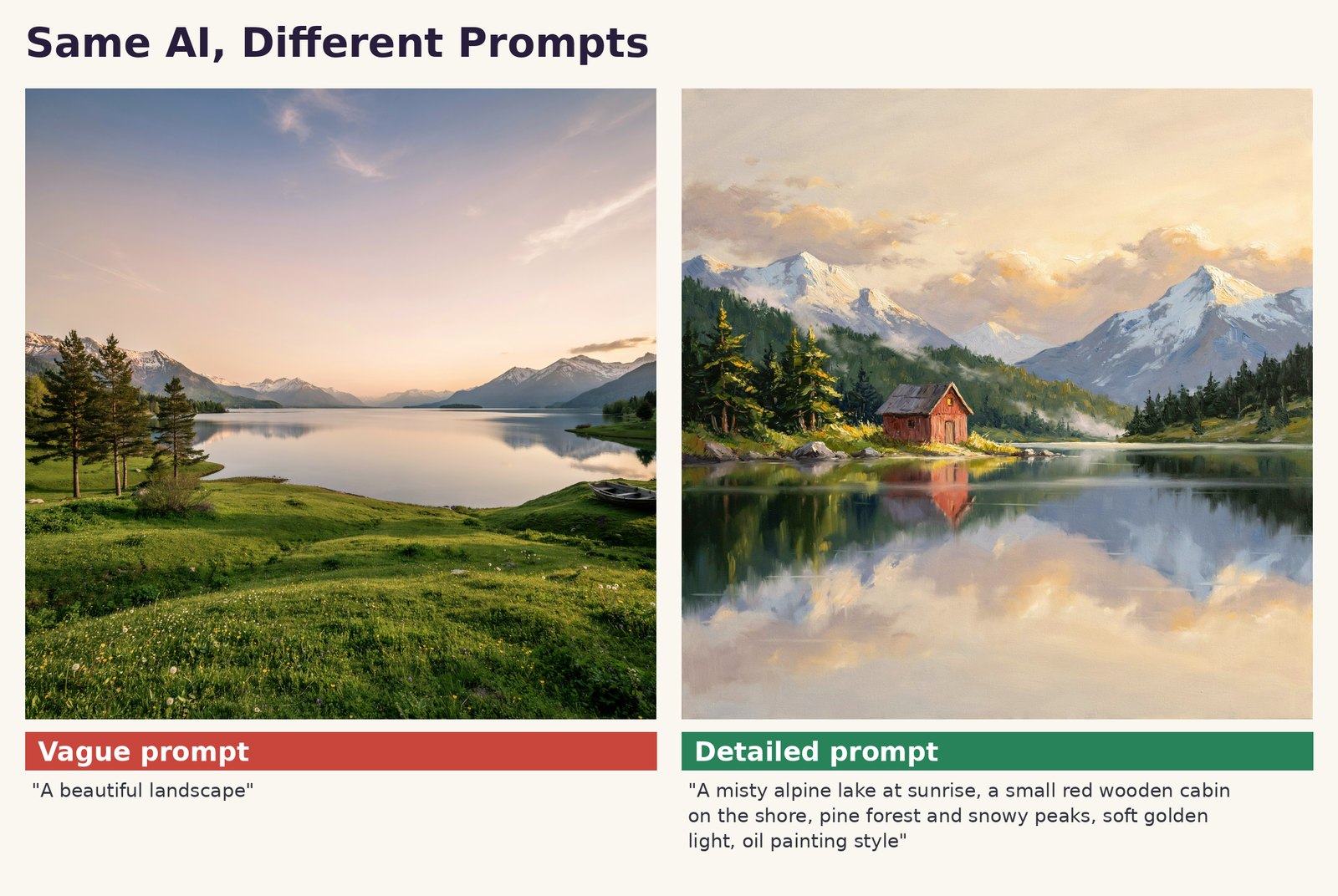
"A beautiful landscape" gives the AI almost nothing to work with, so it fills the gaps with something generic. Add a few specific details and the result changes completely.
A simple formula works for most images. Say what is in the picture, where it is, what the light is like and what style you want.
Look at the two images above. Both came from the same AI. The only difference is the prompt. The detailed one has a clear place, a focal point, a time of day and a painting style, so the AI knows exactly what to make.
For a full walkthrough of prompt writing, see our AI image generator prompt guide.
Tip 4. Set the Size Before You Generate
Changing the shape of an image afterwards often means cropping out something important. Pick the right aspect ratio before you start.
- Square (1 to 1) for profile pictures, feed posts and product thumbnails.
- Tall (9 to 16) for Stories, Reels, Shorts and TikTok.
- Wide (16 to 9) for blog headers, YouTube thumbnails and presentations.
- Portrait (4 to 5) for feed posts that take up more of the screen.
The AI composes the picture to fit the shape, so a wide image will place things differently from a square one.
Tip 5. Generate Several, Then Pick
AI image generation has a bit of randomness built in. The same prompt can give you a great image and a strange one.
Instead of judging the first result, generate three or four versions and pick the strongest. You'll often find one that is much better than the rest, and it costs only a few seconds.
Tip 6. Change One Thing at a Time
When an image is almost right, resist the urge to rewrite the whole prompt. Change one thing, like the lighting or the camera angle, and try again.
This way you learn what each word actually does. Over time you build a feel for which changes make the biggest difference, and you'll need fewer tries to get there.
Tip 7. Use Reference Images for Consistency
Words can only go so far. If you need a specific look, a product that must stay the same, or a character who appears in several images, give the AI a reference image.
Many tools let you upload an image and combine it with your prompt. This is the easiest way to keep your brand colors, your product shape or your style the same across a whole set of images.
Tip 8. Keep Text Short and Check Every Letter
Modern models are much better at putting words into images, but they still slip. The longer the text, the more likely a typo.
- Keep it short. A headline of a few words works far better than a full sentence.
- Put the exact words in quotes in your prompt.
- Use a model that is good at text when words matter.
- Zoom in and read every letter before you publish.
If the text keeps coming out wrong, generate the image without words and add the text afterwards in a simple editor.
Tip 9. Fix, Don't Restart
Got a great image with one small problem? Don't throw it away. Edit it.
Most tools now let you remove a background, erase an object, fill in a missing area or extend the frame beyond the original edges. Fixing one detail is far quicker than hoping a new image comes out perfect.
If your images look too artificial, our guide on how to make AI images look real, not fake covers the most common giveaways and how to fix them.
Tip 10. Upscale for Print and Large Screens
An image that looks sharp on a phone can look soft on a poster or a big monitor. Upscaling increases the resolution and sharpens detail.
Upscale when the image is good but too small. If the image has real problems, like a strange face or a wrong object, fix or regenerate it first, because upscaling makes flaws bigger too.
Tip 11. Save Your Wins
When a prompt works well, save it. Keep a simple note of your best prompts, the model you used and the size. Next time you need a similar image, you start from a proven recipe instead of from zero.
Save the images too, with clear names. A searchable library of your past images saves a lot of time when you need to reuse or update something months later.
Put These Tips to Work With Pixci
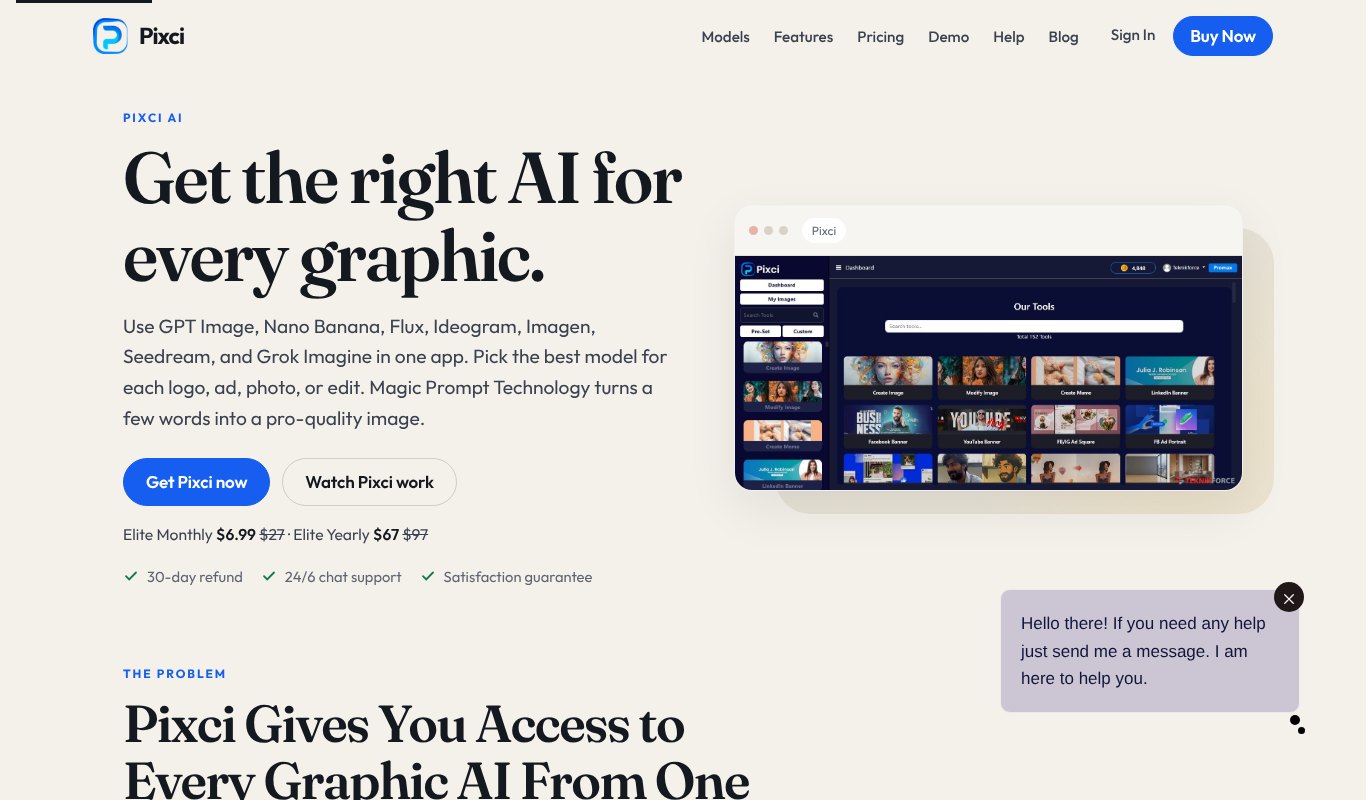
Pixci makes most of these tips easy, because it gives you access to every top graphic AI from one console.
You can choose from 41 top models from OpenAI, Google, xAI, Black Forest Labs, Ideogram, ByteDance and more, including GPT Image, Flux, Ideogram, Imagen, Nano Banana and Seedream. If one model doesn't nail the picture, switch to another on the same plan. New models are added as they launch.
Hundreds of one-click workflows cover common jobs like logos, banners, product shots, scenes, stickers and headshots. Magic Prompt Technology turns a few plain words into a professional image when you want something fast.
Pixci also handles the fixing. Remove a background, upscale, restore an old photo, extend the frame or fill in an area with the tool built for that job. Every image is saved in a library you can search by date or model, and you can resize and download the size you need for screen or print.
Pixci costs $5.58 a month, paid yearly ($67 a year), or $6.99 month to month, with a 30 day refund.
Learn More About Writing Image Prompts
Want to see prompt writing in action? This video from Learn With Shopify walks through how to write great prompts for AI image generators.
Using AI Art Responsibly
AI art is a powerful tool, and a few simple rules keep you on the right side of it.
- Don't copy living artists by name for commercial work. Describe the style instead.
- Avoid real people's faces in ads or endorsements without their permission.
- Check the license terms of the model you use before using images commercially.
- Be honest when an image could mislead, like a product that doesn't exist yet.
- Avoid trademarked logos and characters in your images.
Quick Checklist Before You Publish
- Does it fit the job? Right size, right style, right mood.
- Are hands, faces and objects correct? Zoom in and look closely.
- Is the text spelled correctly? Read every word.
- Is it sharp enough? Upscale if it will be printed or shown large.
- Is it safe to use? No real people, logos or copied styles without permission.
Common Mistakes Beginners Make
Writing a novel. Very long prompts can confuse the AI. Focus on the details that matter most.
Using one model for everything. Each model has strengths. Switch when you hit a wall.
Giving up too early. The first image is a draft. A few small changes usually get you there.
Skipping the final check. Small errors, like an extra finger or a misspelled word, are easy to miss and hurt trust.
Example Prompts You Can Borrow
Sometimes the easiest way to learn is to see a good prompt next to the job it was written for. Here are a few you can copy and change.
- Product shot. A white ceramic coffee mug on a light oak table, soft morning window light from the left, shallow depth of field, clean commercial photo, plenty of empty space on the right.
- Blog header. A wide flat illustration of a small team planning around a whiteboard, warm orange and teal colors, simple shapes, friendly mood, no text.
- Social post. A bold square poster with the words "Weekend Sale" in large white letters, bright yellow background, playful paper cut shapes around the edges.
- Scene. A quiet mountain village at dusk, lanterns glowing in the windows, light snow falling, soft watercolor style.
Notice that each one follows the same pattern from Tip 3. Subject, place, light and style. Swap in your own details and you have a strong starting point for almost any image.
If a borrowed prompt gives you something close but not quite right, go back to Tip 6 and change one part at a time. Maybe the light is too harsh, or the style is too busy. Small changes add up fast.
How to Build a Simple AI Art Routine
Tips work best when they turn into a habit. Here is a short routine that many busy marketers and creators follow.
- Write the job in one line. What is the image for and where will it go?
- Choose the size and a model. Match the shape to the platform and pick a model that suits the style.
- Write the prompt with the four parts. Subject, place, light and style.
- Generate three or four versions. Pick the best one.
- Fix the small problems. Remove, fill or extend instead of starting over.
- Upscale if needed, then save. Keep the prompt and the image together for next time.
The whole routine takes a few minutes once you are used to it. And because you save your wins, it gets faster every week.
FAQ
What is the best AI art generator?
There isn't one best model for everything. Some are better for photos, others for text or illustration. A tool like Pixci lets you try several and keep the one that works best for each picture.
Why do my AI images look generic?
Usually because the prompt is too vague. Add a specific place, a focal point, the lighting and a style, and the AI has far more to work with.
Can I use AI art for my business?
In most cases, yes. Check the license terms of the model you use, and avoid real people, trademarks and copied artist styles.
Do I need design skills?
No. With clear prompts and one-click workflows, anyone can make useful images. Design skills help you judge results, but they aren't required.
How many tries should a good image take?
With a clear prompt and the right model, most people get a usable image in three to five tries. If you are past ten, step back, rewrite the job in one line and try a different model.
Should I use long or short prompts?
Somewhere in the middle. One or two clear sentences that cover the subject, place, light and style usually beat both a single word and a long paragraph.
Final Thoughts
Better AI art comes from simple habits. Start with the job, choose the right model, describe the whole scene, set the size, generate a few and fix rather than restart.
If you want every top image AI in one place, plus one-click workflows and editing tools, try Pixci. Turn your ideas into images that look the way you imagined them.